Every Developer Should Set Up Their Terminal Like This
On this page+
Most developers treat their terminal like a rental car. They install a color theme, bump the font size once, and live with washed-out contrast, walls of unformatted ls gray text, slow grep scans across node_modules, and cd ../../.. guesswork for years.
When you spend hours every day jumping between repositories, reviewing diffs, and running multiple AI coding agents side by side, fixing only the terminal emulator leaves half the friction on the table.
My terminal setup works because every layer reinforces the next: Ghostty handles GPU rendering, typography, and readability; Zsh + Powerlevel10k keeps prompt startup instant and catches typos before execution; and modern Rust/Go CLI tools (eza, bat, ripgrep, fzf, zoxide, git-delta, and lazygit) replace 40-year-old UNIX defaults.
Here is the complete stack I run daily on macOS and why every piece earns its spot.
| Layer | Tools | Replaces | Core Win |
|---|---|---|---|
| Terminal Emulator | Ghostty + JetBrains Mono | Default Terminal / Electron shells | Crisp P3 rendering, contrast guardrails, zero-lag splits & native tabs |
| Shell & Prompt | Zsh + Oh My Zsh + Powerlevel10k | Plain slow prompts | Instant prompt, command history autosuggestions, syntax checks |
| Files & Reading | eza + bat + glow | ls, tree, cat, raw Markdown | Git status columns, syntax-highlighted paging, tree maps |
| Search & Navigation | ripgrep + fzf + zoxide | grep, find, cd ../../ | Skips .next & node_modules, live previews, frecency directory jumps |
| Git & Sessions | lazygit + git-delta + tmux + neovim | Raw git diff & detached SSH chaos | Interactive commit/hunk staging, clean diffs, mouse-enabled panes |
Layer 1: Tune Ghostty for Readability First
Transparent terminals look great in screenshots and turn completely unreadable the second a white browser window sits behind them. Before touching shell aliases, lock in Ghostty so logs and diffs stay crisp at midnight or in bright daylight.
1. Transparency with Readability Guardrails
Instead of giving up on blur and translucency, pair a neutral dark base with three guardrails Ghostty ships natively:
theme = "Catppuccin Mocha"
background = #171717
foreground = #C5C8C6

background-opacity = 0.9
background-blur-radius = 12

window-colorspace = display-p3
minimum-contrast = 3
alpha-blending = linear-corrected
background = #171717over Catppuccin Mocha: Keeps Catppuccin's soft syntax palette while dropping the backdrop into a neutral charcoal that blends cleanly with dark editors.background-opacity = 0.9+background-blur-radius = 12: Preserves spatial awareness behind the window without turning code into soup.minimum-contrast = 3: Automatically boosts foreground luminance whenever background contrast drops too low—comments never vanish into bright windows behind Ghostty.alpha-blending = linear-corrected+window-colorspace = display-p3: Prevents muddy text anti-aliasing on Retina displays and keeps colors accurate on Apple P3 panels.
2. Crisp Retina Typography
macOS often renders standard monospace weights either too hairline or too chunky at larger font sizes:
font-family = JetBrains Mono Light
font-family-bold = JetBrains Mono Bold
font-family-italic = JetBrains Mono Italic
font-family-bold-italic = JetBrains Mono Bold Italic

font-size = 16
font-thicken = true
adjust-cell-width = -4%
Pairing JetBrains Mono Light (brew install --cask font-jetbrains-mono) with font-thicken = true keeps strokes razor-sharp without feeling heavy at 16px. Tightening adjust-cell-width = -4% fits more diff and stack-trace context per line without cramping glyphs.
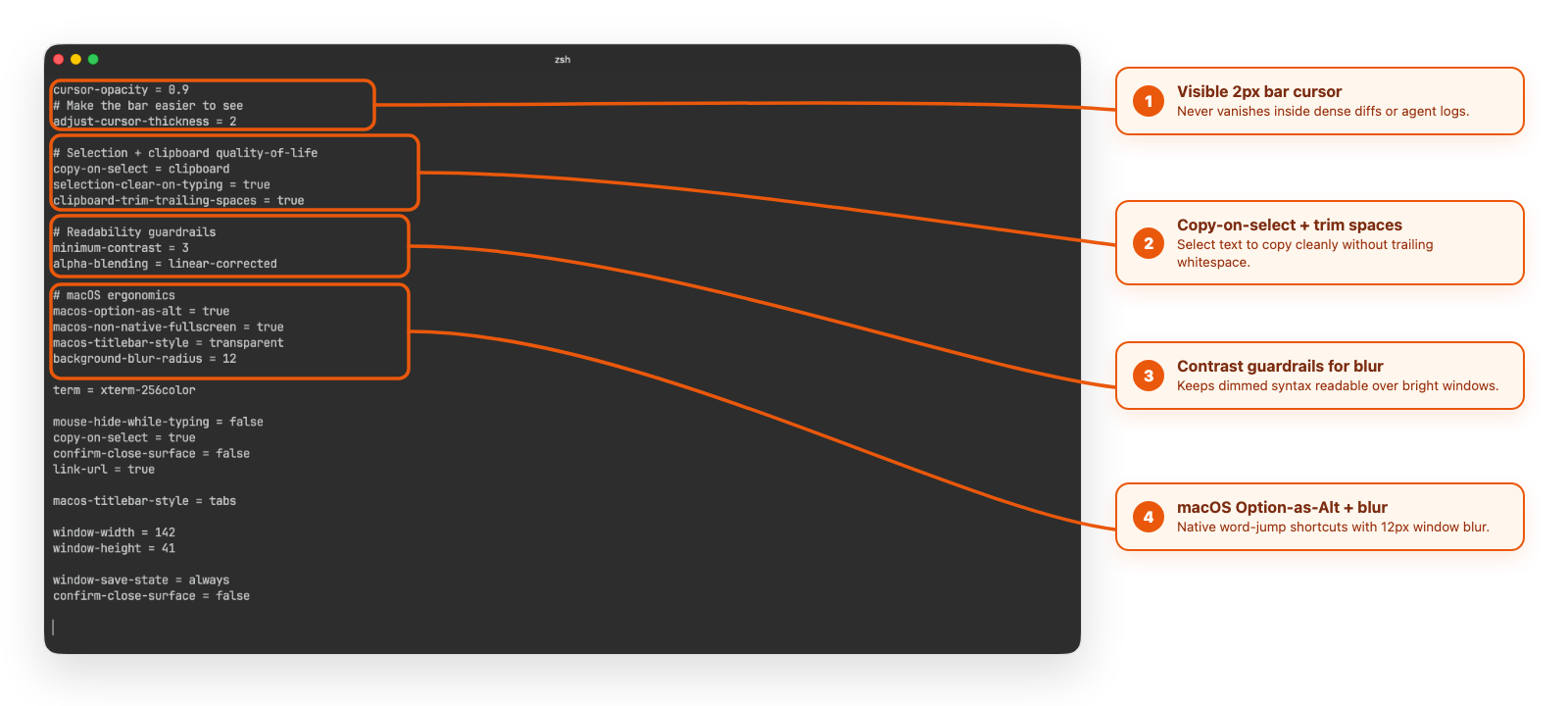
3. Cursor, Clipboard, and macOS Ergonomics
When logs stream at 400 lines a second or you highlight URLs repeatedly, cursor contrast and copy-paste behavior matter more than eye candy:
# Cursor
cursor-style = bar
cursor-color = cell-foreground
cursor-opacity = 0.9
adjust-cursor-thickness = 2

# Selection and clipboard
copy-on-select = clipboard
selection-clear-on-typing = true
clipboard-trim-trailing-spaces = true
mouse-hide-while-typing = false
link-url = true

# Window, macOS behavior, and keybindings
macos-option-as-alt = true
macos-non-native-fullscreen = true
macos-titlebar-style = tabs
window-padding-x = 12
window-padding-y = 10
window-width = 142
window-height = 41
window-save-state = always
confirm-close-surface = false
term = xterm-256color

keybind = ctrl+f=start_search
keybind = super+f=toggle_fullscreen
Why those details pay off:
copy-on-select = clipboard+clipboard-trim-trailing-spaces = true: Highlight a token or URL and it lands straight on the macOS clipboard cleanly—noCmd+C, no trailing spaces.macos-option-as-alt = true: MakesAlt+B,Alt+F, Vim motions, and TUI shortcuts work natively instead of typing special characters.macos-titlebar-style = tabs+macos-non-native-fullscreen = true: Instant fullscreen transitions without macOS Space animations. (Tradeoff: non-native fullscreen removes the titlebar thatmacos-titlebar-style = tabsrelies on, so entering fullscreen with multiple tabs open detaches the focused tab into its own window and leaves the other tabs behind. Dropmacos-non-native-fullscreen = trueif you prefer multi-tab native fullscreen.)term = xterm-256color: Prevents SSH targets withoutxterm-ghosttyterminfo entries from breaking line editing.
Layer 2: Zsh, Powerlevel10k & Real-Time Guardrails
A slow shell steals focus every time you open a split pane. The goal for ~/.zshrc is simple: render the prompt immediately, autocomplete repeated commands cleanly, and flag syntax errors before you press Enter.
# Enable Powerlevel10k instant prompt cleanly at the top of ~/.zshrc
if [[ -r "${XDG_CACHE_HOME:-$HOME/.cache}/p10k-instant-prompt-${(%):-%n}.zsh" ]]; then
  source "${XDG_CACHE_HOME:-$HOME/.cache}/p10k-instant-prompt-${(%):-%n}.zsh"
fi

export ZSH="$HOME/.oh-my-zsh"
ZSH_THEME="powerlevel10k/powerlevel10k"

plugins=(git)
source $ZSH/oh-my-zsh.sh

source ~/.zsh/plugins/zsh-autosuggestions/zsh-autosuggestions.zsh
source ~/.zsh/plugins/zsh-syntax-highlighting/zsh-syntax-highlighting.zsh
Three small choices here save hundreds of micro-stumbles a week:
- Powerlevel10k Instant Prompt (
POWERLEVEL9K_MODE=ascii): New tabs open interactively before slow version checks finish—and using ASCII mode avoids broken font glyphs over SSH or containers. zsh-autosuggestions: Greys out your previous matching command inline as you type; pressing right-arrow accepts long test or deploy commands in one keystroke.zsh-syntax-highlighting: Lights valid binaries up in green and flags typos or unclosed quotes in red while you are typing.
Layer 3: Replace ls, cat, tree, grep, find, and cd
Once the terminal and shell are fast, upgrade the core UNIX verbs your fingers type automatically every two minutes.
1. Better File Listings & Previews (eza + bat)
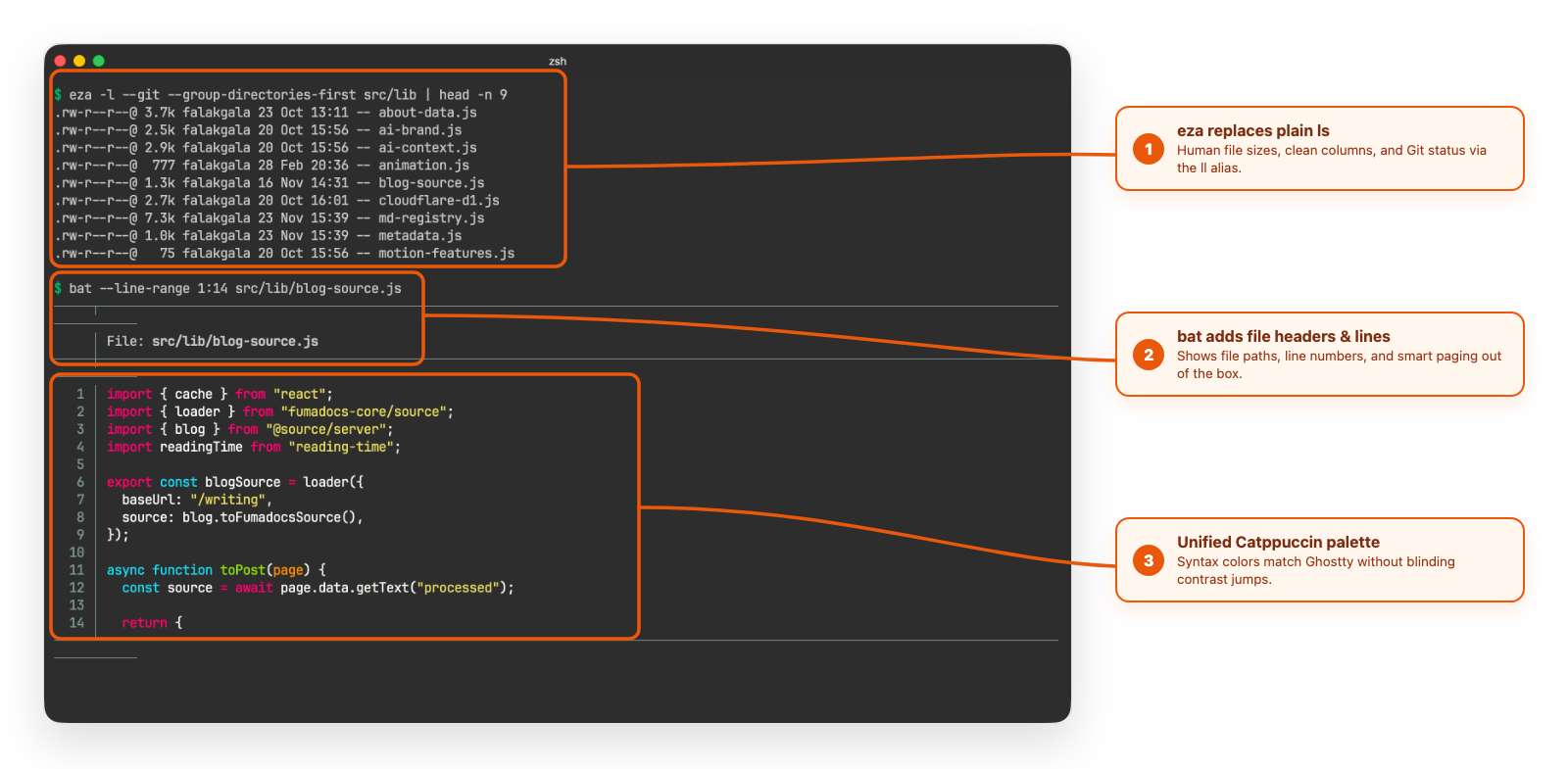
Plain ls hides directory grouping and Git status, and plain cat dumps monochrome text into scrollback. Installing eza and bat fixes both immediately—and aliasing ls, ll, la, and lt means you never have to break existing muscle memory:
# eza (modern ls replacement)
if command -v eza >/dev/null 2>&1; then
  alias ls='eza --group-directories-first'
  alias ll='eza -l --git --group-directories-first'
  alias la='eza -la --git --group-directories-first'
  alias lt='eza --tree'

  ltd() {
    eza --tree --level=${1:-2}
  }

  alias l1='eza -1'
  alias lsize='eza -l --sort=size --reverse'
  alias ltime='eza -l --sort=modified'
  alias ld='eza -D'
  alias lf='eza -f'
fi
Add glow for terminal-native Markdown rendering when inspecting repo README.md files, and jq / yq whenever API responses or CI configs need quick slicing.
2. Zero-Noise Code Search & Jumps (ripgrep + fzf + zoxide)
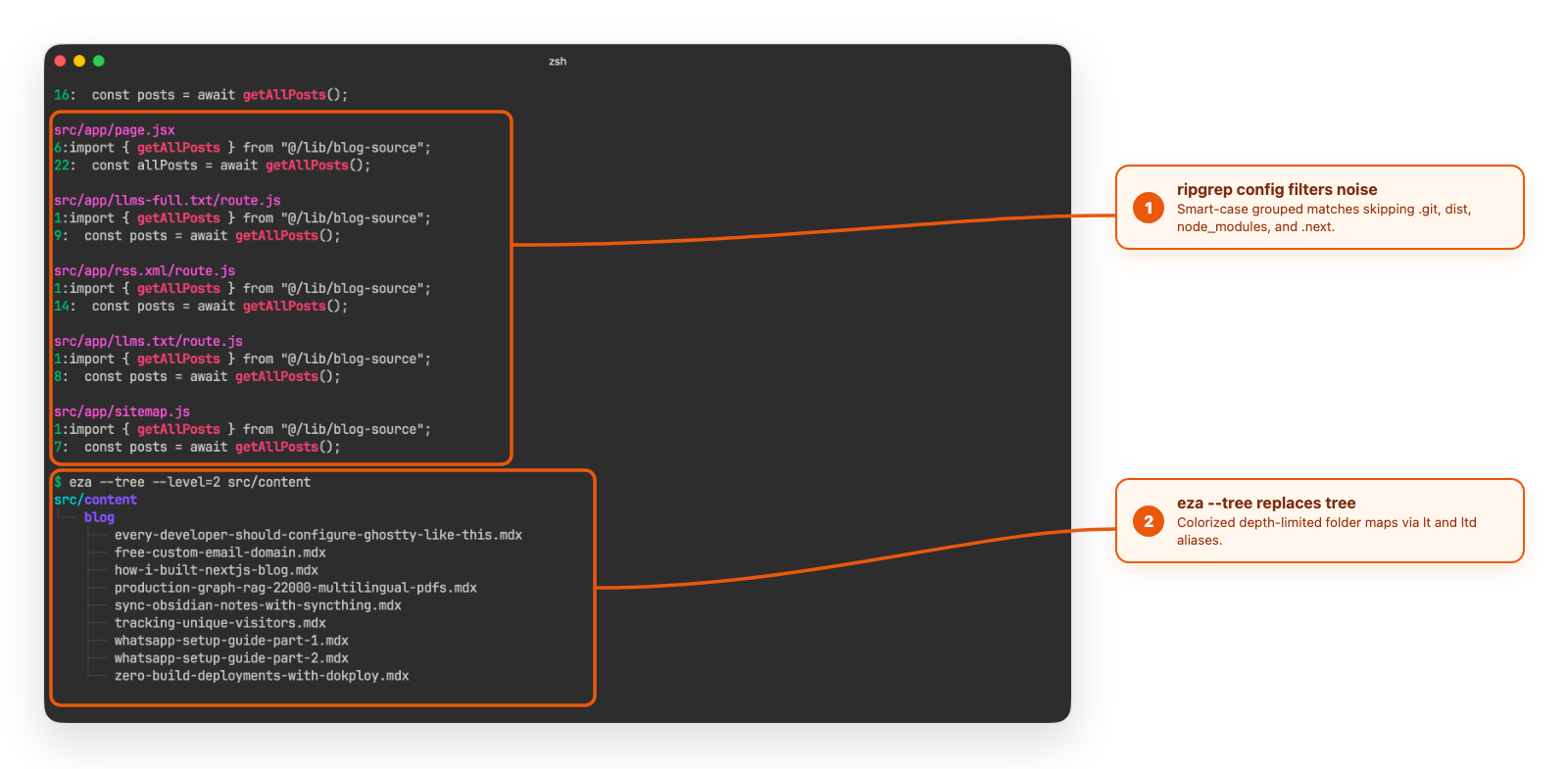
The fastest grep replacement still wastes your time if you keep passing --exclude-dir=node_modules by hand. Put your defaults in ~/.config/ripgrep/config once and point RIPGREP_CONFIG_PATH at it:
--hidden
--follow
--smart-case
--glob=!**/.git/*
--glob=!**/node_modules/*
--glob=!**/dist/*
--glob=!**/.next/*
Then combine ripgrep with fzf in one lightweight shell helper—so searching for a symbol gives you live interactive filtering with a preview line right inside Ghostty:
# fzf + ripgrep interactive search
fzf_rg() {
  rg --line-number --no-heading "$1" |
    fzf --delimiter : \
        --preview 'sed -n {2}p {1}' \
        --preview-window=down:3:wrap
}

alias ff='fzf'

# zoxide (smart cd replacement)
eval "$(zoxide init zsh)"
Pair that with zoxide (z proj jumps straight to your most frequently used project directory instead of typing full paths) and navigation stops feeling like directory traversal chores.
Layer 4: Git Workflows & Persistent Sessions (lazygit, git-delta, tmux, neovim)
Reading raw git log --stat or typing repetitive git rebase -i commands slows down code review—especially when juggling multiple PR branches or reviewing agent-generated changes.
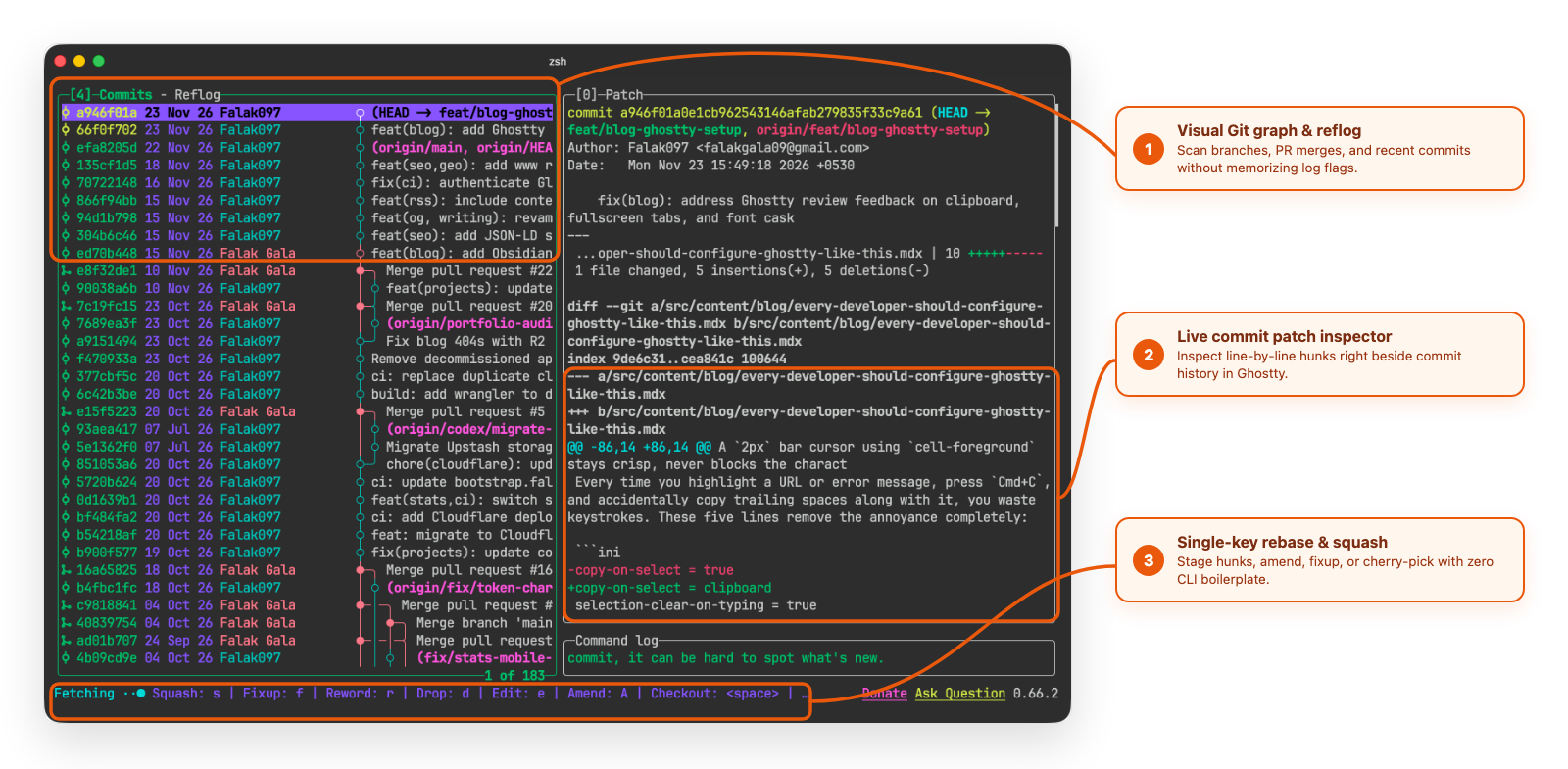
Here is how the rest of my Git and session layer fits together:
lazygit+ shortgs/glaliases: In~/.zshrc,gs(git status) andgl(command git log --oneline --graph --decorate --no-color) handle 5-second checks, whilelazygithandles staging partial hunks, inspecting full commit diffs, and rebasing cleanly.git-delta: Plugs intogit diffso terminal diffs get syntax highlighting and crisp line alignment instead of flat red/green patches.tmux(set -g mouse on) +neovim: Keeps long-running processes, dev servers, and multi-agent sessions alive and scrollable even when detaching or switching panes.
Install the Complete Stack & Copy Configs
If you are setting up a fresh Mac, start with Homebrew for the terminal, font, and core CLI tools:
brew install --cask ghostty font-jetbrains-mono
brew install bat eza zoxide ripgrep fzf git-delta lazygit tmux neovim glow jq
Complete ~/.config/ghostty/config
Save this file to ~/.config/ghostty/config and reload with Cmd+Shift+,:
theme = "Catppuccin Mocha"
background = #171717
foreground = #C5C8C6
background-opacity = 0.9
background-blur-radius = 12
window-colorspace = display-p3
minimum-contrast = 3
alpha-blending = linear-corrected

# Custom ANSI palette tuned for dark backgrounds
palette = 0=#282a2e
palette = 1=#D74E6F
palette = 2=#31BB71
palette = 3=#D3E561
palette = 4=#8056FF
palette = 5=#ED61D7
palette = 6=#04D7D7
palette = 7=#C5C8C6
palette = 8=#4B4B4B
palette = 9=#FE5F86
palette = 10=#00D787
palette = 11=#EBFF71
palette = 12=#8F69FF
palette = 13=#FF7AEA
palette = 14=#00FEFE
palette = 15=#FFFFFF

# Typography
font-family = JetBrains Mono Light
font-family-bold = JetBrains Mono Bold
font-family-italic = JetBrains Mono Italic
font-family-bold-italic = JetBrains Mono Bold Italic
font-size = 16
font-thicken = true
adjust-cell-width = -4%

# Cursor
cursor-style = bar
cursor-color = cell-foreground
cursor-opacity = 0.9
adjust-cursor-thickness = 2

# Selection and clipboard
copy-on-select = clipboard
selection-clear-on-typing = true
clipboard-trim-trailing-spaces = true
mouse-hide-while-typing = false
link-url = true

# Window, macOS behavior, and keybindings
macos-option-as-alt = true
macos-non-native-fullscreen = true
macos-titlebar-style = tabs
window-padding-x = 12
window-padding-y = 10
window-width = 142
window-height = 41
window-save-state = always
confirm-close-surface = false
term = xterm-256color

keybind = ctrl+f=start_search
keybind = super+f=toggle_fullscreen
Core ~/.zshrc Workflow Snippet
Drop these aliases and helpers into ~/.zshrc alongside Oh My Zsh, Powerlevel10k, zsh-autosuggestions, and zsh-syntax-highlighting:
# Point ripgrep at global ignore/smart-case config
export RIPGREP_CONFIG_PATH="$HOME/.config/ripgrep/config"

# eza aliases
if command -v eza >/dev/null 2>&1; then
  alias ls='eza --group-directories-first'
  alias ll='eza -l --git --group-directories-first'
  alias la='eza -la --git --group-directories-first'
  alias lt='eza --tree'
  ltd() { eza --tree --level=${1:-2}; }
  alias l1='eza -1'
  alias lsize='eza -l --sort=size --reverse'
  alias ltime='eza -l --sort=modified'
  alias ld='eza -D'
  alias lf='eza -f'
fi

# ripgrep + fzf interactive jump helper
fzf_rg() {
  rg --line-number --no-heading "$1" |
    fzf --delimiter : \
        --preview 'sed -n {2}p {1}' \
        --preview-window=down:3:wrap
}

alias ff='fzf'
alias gs="git status"
alias gl="command git log --oneline --graph --decorate --no-color"

# zoxide smart cd
eval "$(zoxide init zsh)"
Once Ghostty rendering, Zsh instant prompt, eza/bat/ripgrep/fzf/zoxide, and lazygit click together, opening a stock terminal feels immediately broken by comparison.
Pair this terminal stack with the Mac dev and AI workflow apps I run daily, how I reclaim disk space with Mole and AlDente, and how I keep my Mac awake while AI agents code.