Never Wake Up to a Stalled Coding Agent (Amphetamine, Raycast & caffeinate)
On this page+
Leave an AI coding agent, Docker build, or database migration running while you step away for twenty minutes, and macOS will happily dim the display, lock the session, and put the machine to sleep halfway through the run. Network connections drop, background workers pause, and you come back to a half-finished diff.
The obvious fix—setting System Settings to Never sleep—backfires the first time you close your laptop or toss it into a bag and pull out a hot battery at 4%.
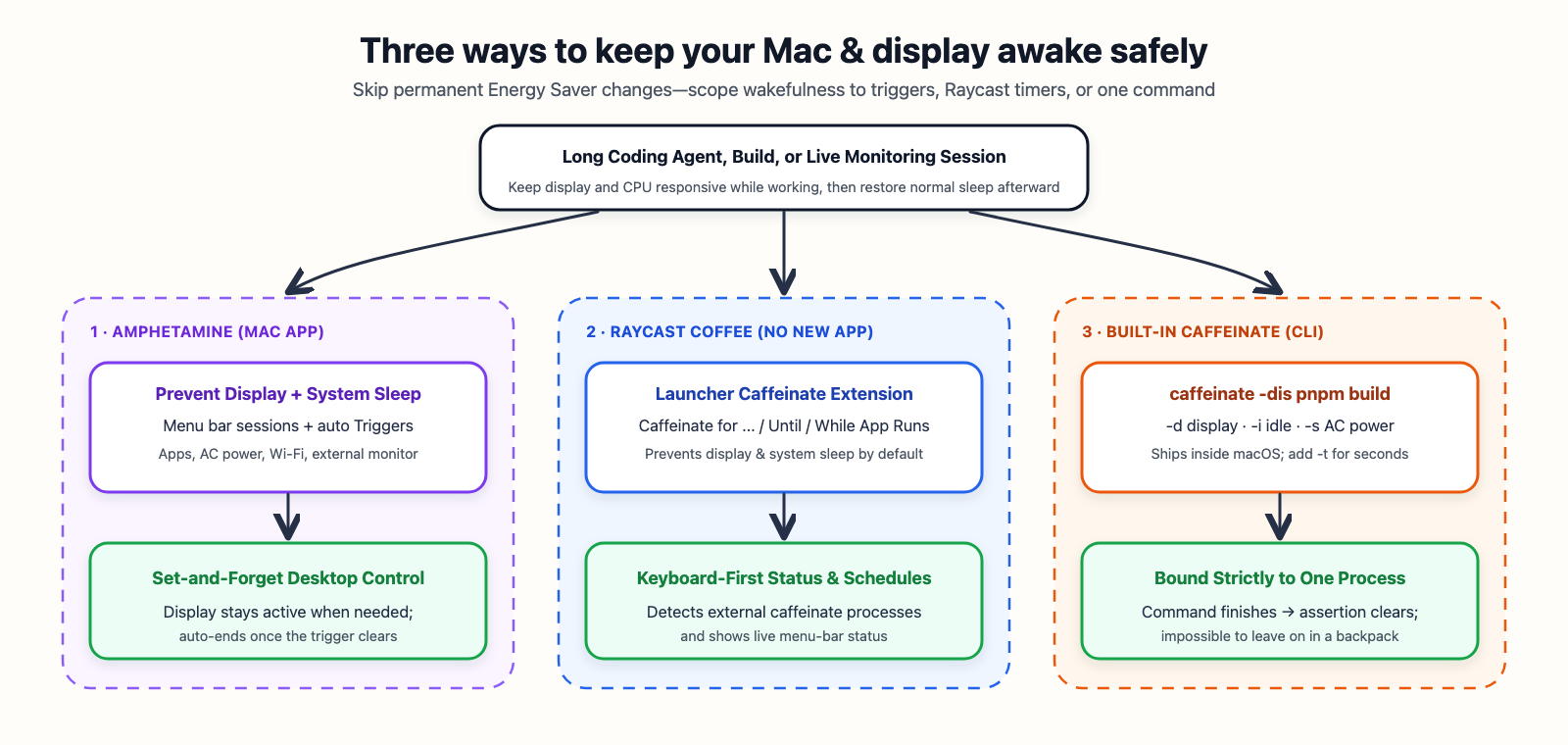
What you want instead is temporary wakefulness scoped to the work you are doing right now. On macOS, there are three ways to handle it cleanly depending on whether you want a dedicated menu bar app, an extension inside Raycast, or a single terminal flag.
1. Amphetamine — Menu Bar Control to Keep Your Display Awake
For day-to-day Mac work where you explicitly want to prevent your display from sleeping, Amphetamine (free on the Mac App Store and tracked on MacUpdate) is the simplest dedicated utility.
I use Amphetamine when I want my display to stay visible and awake—watching agent logs stream, running preview environments, or monitoring long builds—without having to wiggle the mouse every five minutes.
Three controls make it more useful than global Energy Saver toggles:
- Clear session durations: Pick a preset from the menu bar—for 15 minutes, 2 hours, until a specific time, or while an app is running—and let sleep rules return automatically once the session finishes.
- Explicit display-sleep toggle: Keep both your display and CPU awake while monitoring a run, or disable "Allow display sleep" / "Allow system sleep" per session when you want your screen visible.
- Triggers: Automatically activate a session when your MacBook is plugged into AC power, connected to an external monitor, on a known Wi-Fi network, or running a specific app (
T3 Code,OrbStack,Ghostty). Once the condition stops matching, normal sleep returns.
(Check your corporate Lock Screen policy if your Mac enforces an MDM screen-lock timeout; software keep-awake sessions respect enterprise lock enforcement.)
2. Raycast Coffee Extension — No Extra App to Install
If you already live in Raycast and do not want to install another standalone menu-bar app, install the Coffee extension from the Raycast Store (Store -> search Coffee).
Under the hood, Coffee wraps macOS sleep prevention into keyboard commands you already trigger with Cmd+Space. Both Prevent display sleep and Prevent system sleep are enabled by default in its extension preferences.
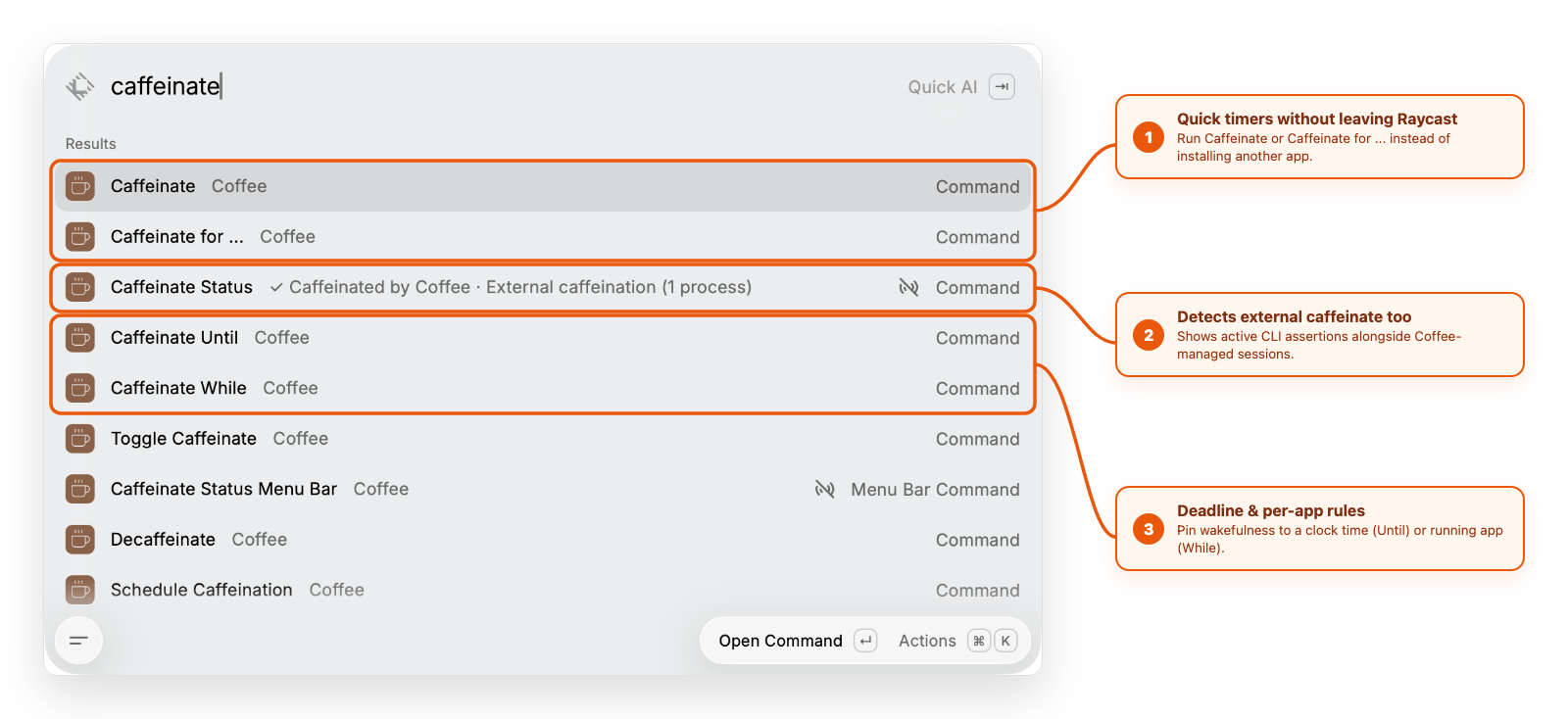
The commands worth assigning a hotkey or alias to:
Caffeinate for ...: Type1hour or45minutes right inside Raycast for a timed run.Caffeinate Until: Set a wall-clock cutoff (for example5pm), useful when stepping away for lunch or end-of-day builds.Caffeinate While: Tie wakefulness to an app process—as soon as you quit the build tool or agent window, sleep resumes.Schedule Caffeination+Caffeinate Status Menu Bar: Create repeating desk-hours rules and inspect whether Coffee or an external CLIcaffeinateprocess is currently holding your Mac awake.
If your lid stays closed on a dock, open Coffee's extension settings and toggle Prevent system sleep on AC power (caffeinate -s) as well.
3. Native caffeinate — Zero Installs From the Terminal
If you do not want a menu bar utility or a Raycast extension, macOS ships /usr/bin/caffeinate out of the box.
The safest way to use it is to wrap a single command directly:
caffeinate -dis pnpm build && pnpm deployBecause caffeinate wraps that child command, the assertion drops the moment the command exits—even if the build fails. You can never accidentally leave your Mac awake overnight.
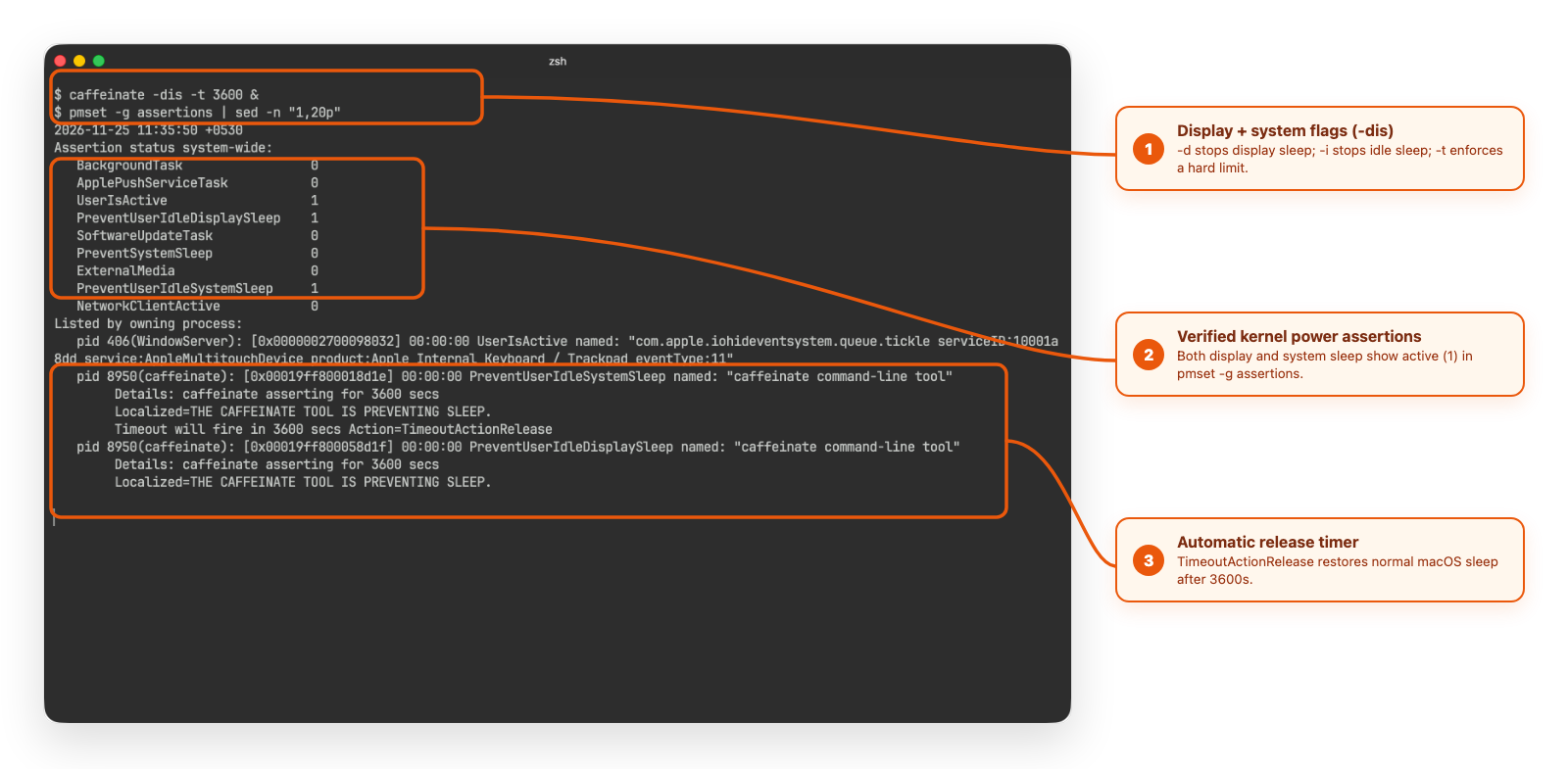
Only five flags really matter in daily use:
| Flag | Effect | Typical use |
|---|---|---|
-d | Keeps display awake | Watching live previews, logs, or UI test suites |
-i | Prevents system idle sleep | Background agent loops, migrations, scrapers |
-s | Keeps system awake on AC power | Plugged-in runs on a desk or dock |
-u | Emulates user activity (pair with -t) | Keeps session active for an exact countdown |
-t 3600 | Ends automatically after N seconds | Timed limit (3600 = 1 hour) when unattended |
Two commands to keep handy:
# Keep display and system awake manually until Ctrl+C
caffeinate -dis

# Prevent idle + display sleep for 2 hours, then exit automatically
caffeinate -di -t 7200
You can verify what is currently holding your Mac awake anytime with:
pmset -g assertionsWhich One to Pick
- Use Amphetamine if you want a dedicated menu bar app focused on keeping your display awake with automated app, AC-power, and monitor triggers.
- Use Raycast's Coffee extension if you already launch everything through Raycast and want
Caffeinate for ...,Caffeinate Until, andCaffeinate Whilewithout installing another app. - Use
caffeinate -dis <command>inside Ghostty when you want zero setup and sleep prevention strictly tied to one running job.
For the rest of a reliable local dev setup, pair this with Mole and AlDente to keep caches cleared and battery charging capped on AC power, Every Developer Should Set Up Their Terminal Like This, and 8 Mac Apps for Dev and AI Workflows.